Kaseya 365 Ops: Getting Started with Kaseya Quote Manager
PERMISSIONS Master role
PERMISSIONS User accounts with the highest permission level (Master, Superuser, Administrator, or Global Administrator) for each module in the Kaseya 365 subscription. If you need an account with a higher permission level, contact your module's administrator.
This article describes how to access your Kaseya Quote Manager (KQM) instance for the first time from the Kaseya 365 Setup Guide page in KaseyaOne. You will want to fully set up KQM before introducing it to the rest of your company.
 Logging into Kaseya Quote Manager for the first time
Within 48 hours of your subscription's start date, you will receive a Welcome to Kaseya 365 email. You can start setting up your new KQM module as soon as you receive this email. It contains a link to the KaseyaOne portal— the central hub where you manage your subscriptions and access all of your Kaseya 365 modules.
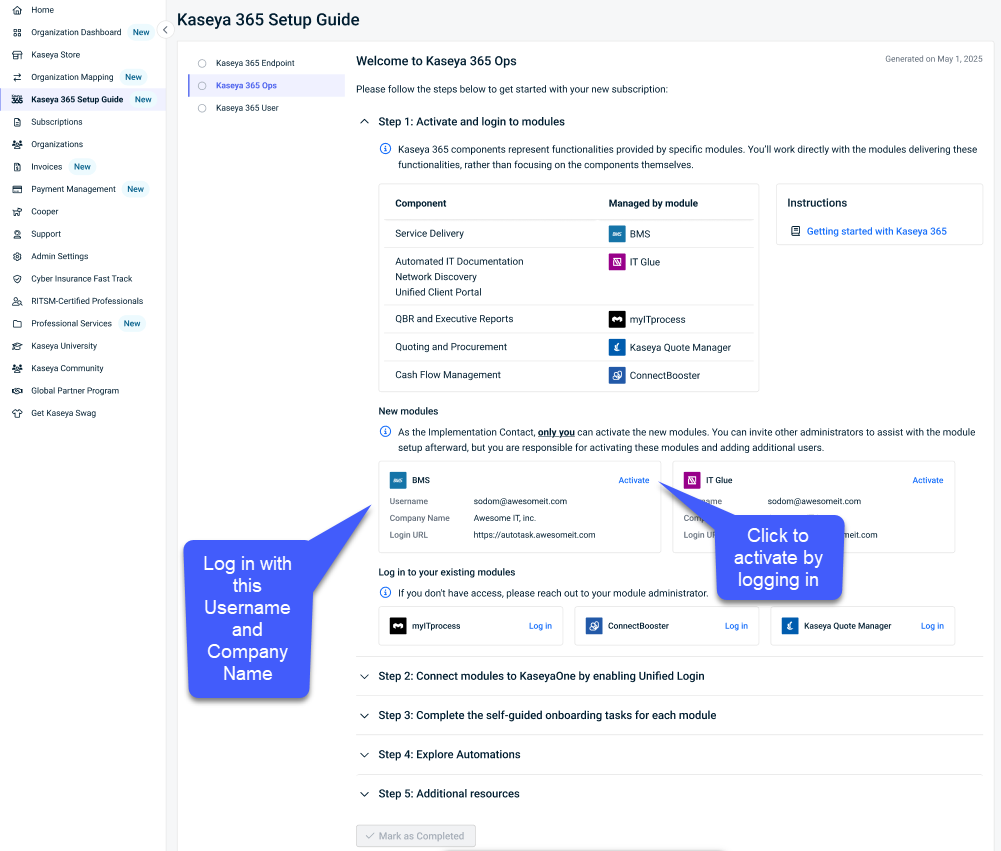
IMPORTANT Before you click the Activate link for the module, make note of your login details.
Take the following steps to Activate your KQM module for Kaseya 365:
-
On the Kaseya 365 Setup Guide page in the KaseyaOne portal, navigate to the New Modules section and find Kaseya Quote Manager.
-
Click Activate.
-
Change your password and click Complete Setup.
-
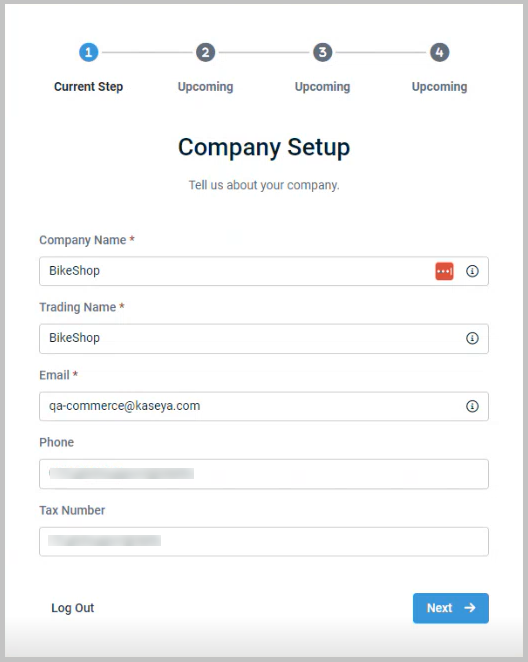
On the Company Setup page, configure the settings as required (refer to Adding company details) and then click Next.
-
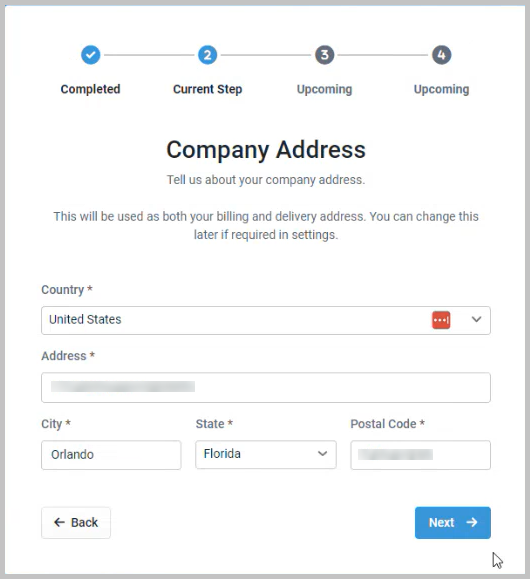
On the Company Address page, configure the settings as required (refer to Adding company details) and then click Next.
-
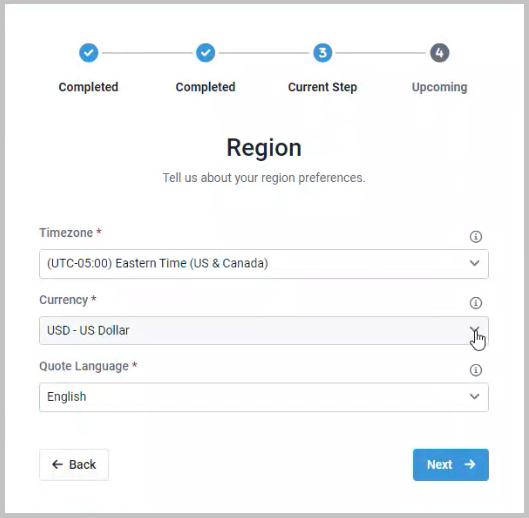
On the Region page, specify your preferred Timezone, Currency, and Quote Language and then click Next.
-
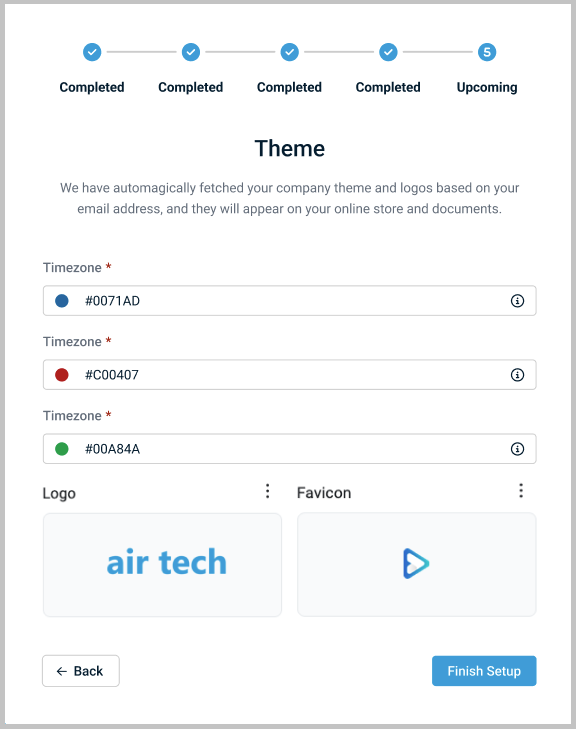
On the Theme page, set up your company theme which will be used in your online store and documents. Refer to Customizing your theme and product range for more information.
-
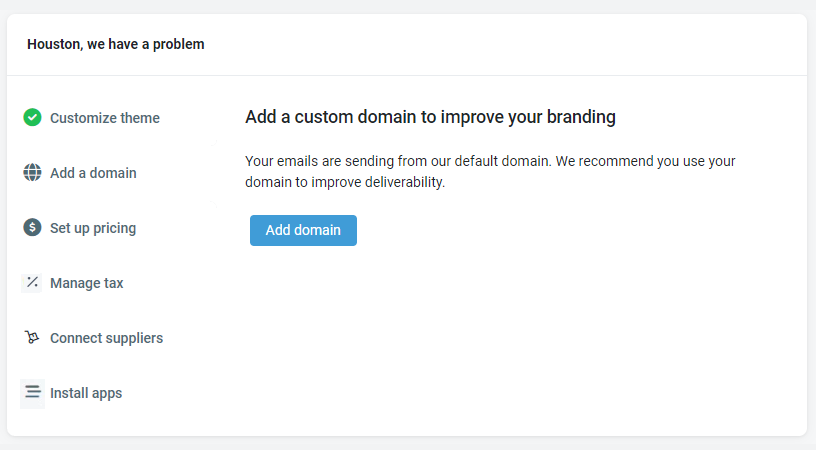
Click Finish Setup when done and the Kaseya Quote Manager Home page opens showing the onboarding dashboard.
-
Initial Configuration is complete.
Next Steps: Complete self-paced onboarding
Complete self-paced onboarding
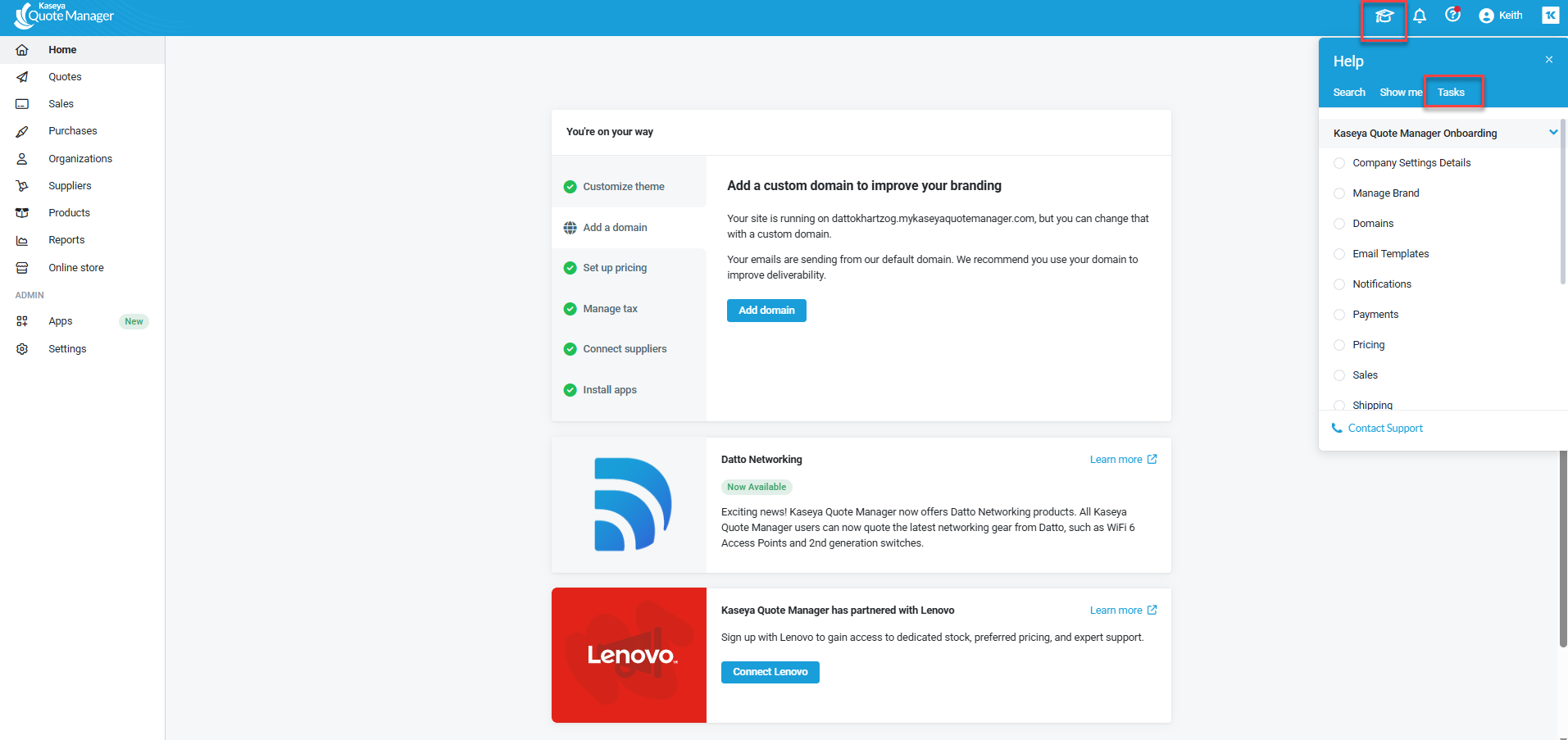
Self-paced onboarding launches automatically the first time you log in to your new KQM instance as an Administrator. You can also access it anytime from the WalkMe menu. Click the  icon from the top navigation menu to open the WalkMe content.
NOTE The self-paced onboarding guide also launches for non-administrator users.
Onboarding tasks
The self-paced onboarding walks you through KQM and also requires certain configurations that should be made prior to your first consulting session. As supplementary material, the following table lists the required configurations and links to the related knowledge base articles:
| Configuration Task | Knowledgebase Article |
|---|---|
| Company Settings Details | Adding company details |
| Manage Brand | Managing brands |
| Domains | Connecting domains |
| Notifications | Enabling notifications |
| Email Templates | Email templates |
| Payments | Enabling payments |
| Pricing | Setting pricing |
| Sales | Choosing sales settings |
| Shipping | |
| Tax | |
| Team | |
| Suppliers | Supplier integrations and product feeds |
| Organizations | Creating and managing organization accounts |
| Quotes | Quoting from the Admin Center |
| Approving Sales Order | Approving sales orders |
| Receipt a Purchase Order | Creating and managing supplier purchase orders |
| Adding Suppliers and Organizations | Adding suppliers and product feeds |
| Communicating better with quote templates and notifications | Building a standard quote template |
| Approving sales orders and processing purchase receipts | Approving sales orders |
Understanding your integrations and automations
Available integration
Kaseya Quote Manager integrates with Autotask, another module available in a Kaseya 365 Ops subscription:
NOTE This integration will be configured for you in a session with an implementation consultant from Kaseya.
Benefits
This integration unlocks automations that boost efficiency and reduce rework, including
-
the ability to sync data between the modules and manage that data in either platform,
-
create a Kaseya Quote Manager quote directly from Autotask,
-
view Kaseya Quote Manager insights in Autotask opportunity and ticket categories, and more.


