Autotask inventory fulfillment and auto-reservation
The Autotask inventory fulfillment feature allows you to fulfill Sales Orders in Kaseya Quote Manager (KQM) directly from stock held in Autotask PSA inventory locations and warehouses. This process prevents redundant vendor purchase orders when items are already in stock and automates purchasing for any remaining shortfalls.
Key benefits
- Eliminate Redundant Purchase Orders: Avoid generating vendor purchase orders when inventory is locally available in Autotask.
- Hybrid Sourcing: Split fulfillment seamlessly between local Autotask stock and vendor purchase orders (POs) for shortfall quantities.
- Real-Time Stock Visibility: View live available quantities and average unit costs per warehouse directly within the Sales Order.
- Flexible Serial Number Selection: Choose between automated First-In, First-Out (FIFO) reservation and manual serial number assignment.
- Consolidated Shortfall POs: Automatically generate grouped purchase orders by vendor with automated supplier ranking.
Prerequisites and global configuration
Prerequisites
-
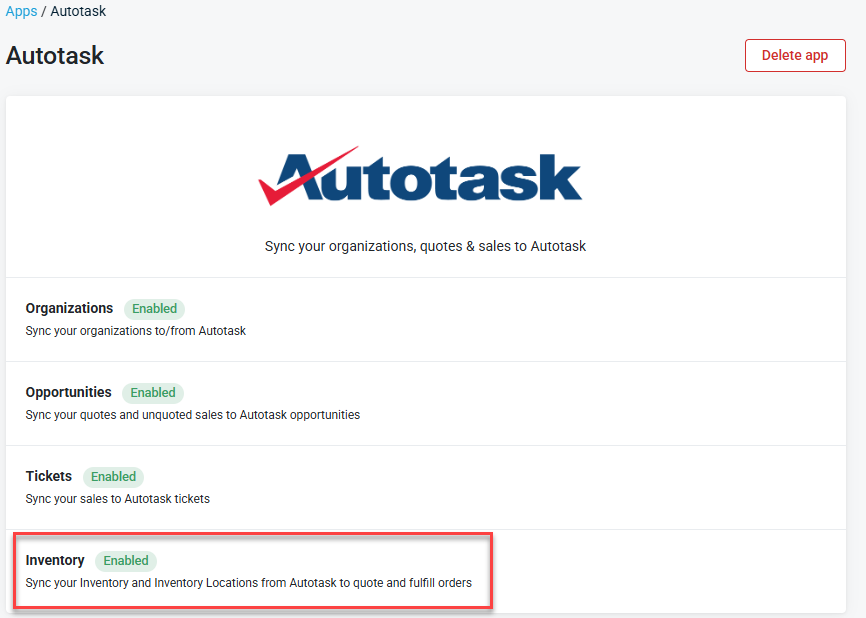
An active integration with Autotask PSA with both Inventory Sync and Opportunity Sync enabled.
-
A synchronized product catalog between Kaseya Quote Manager and Autotask.
Enabling automatic Autotask Inventory prioritization
To automatically designate Autotask inventory as the primary fulfillment source for eligible orders:
- In KQM Admin, navigate to Settings > Apps > Autotask.
- Select the Inventory tab.
- Locate and enable the Prioritize Autotask Inventory for auto-approved Sales Orders setting.
- Click Save.
Refer to Inventory synchronization for more information.
NOTE When enabled, any Sales Order line containing products with on-hand stock in Autotask will automatically have the Pick from Autotask option pre-selected upon order creation. The actual stock reservation and fulfillment remain an intentional action executed by procurement staff.
Sourcing and stock verification on sales orders
Selecting lines for Autotask sourcing
- In the Sales Order edit screen, a dedicated Pick from Autotask check box appears on each line item for synced products.
- Pre-Approval: You can select or clear lines freely before approving the Sales Order.
- Post-Approval Lock: After approval, check box states lock to prevent modifications during active fulfillment.
Real-time stock availability preview
Hover over the inventory indicator on any synced line item to view:
- Warehouse and Inventory Location name(s) where the product is stocked.
- Real-time available quantity per location.
- Average unit cost per location.
NOTE This preview remains accessible after order approval to verify stock before fulfillment.
Autotask Fulfillment workflow (Pick & Reserve)
-
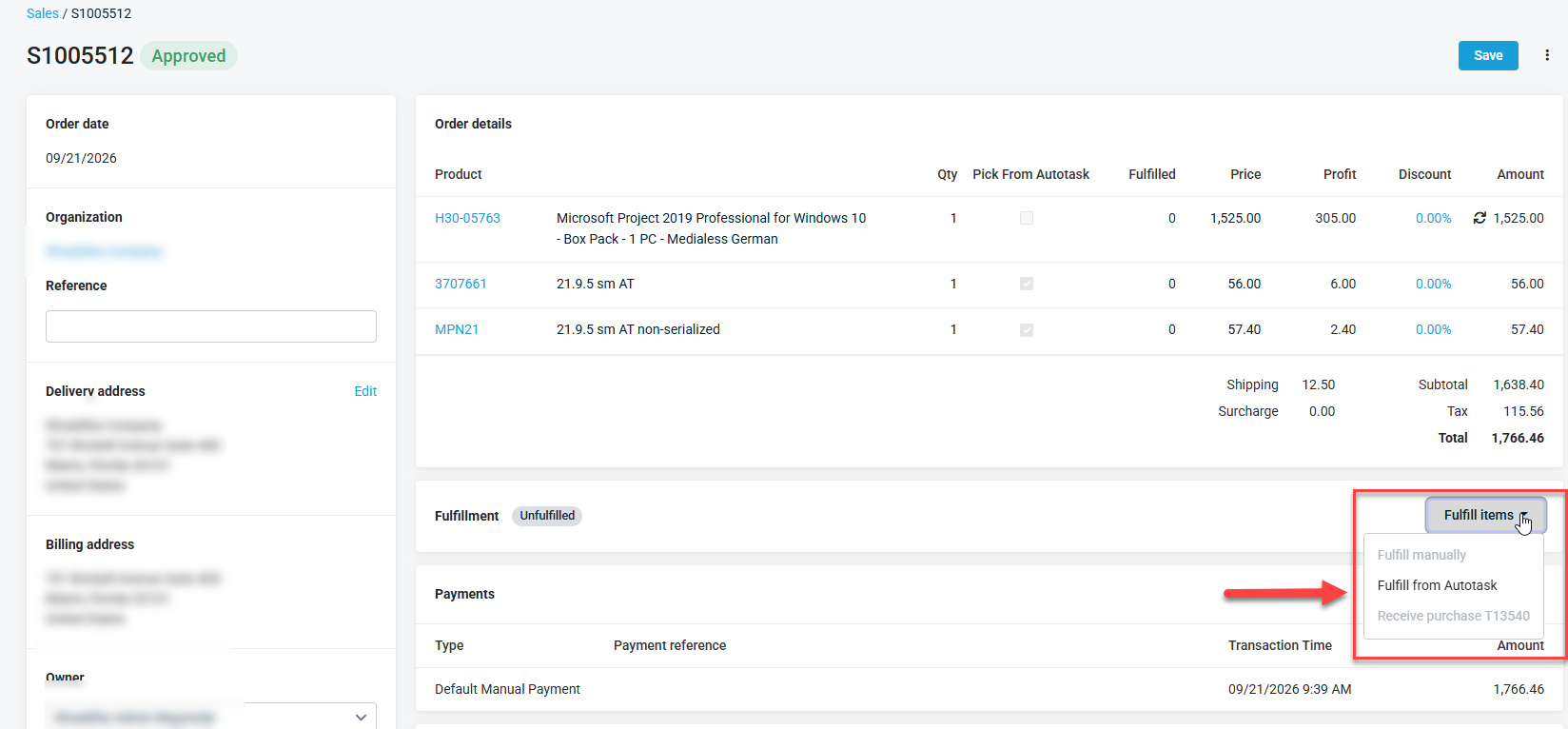
Once a Sales Order is approved and contains items marked for Autotask fulfillment:
-
Open the approved Sales Order.
-
Select Fulfill from Autotask from the top action menu.
-
On the Autotask Fulfillment (Pick & Reserve) page, review the available inventory across Autotask locations.
-
Enter the desired quantity to reserve from each specific warehouse or inventory location.
 Reservation Safeguards
- Locations with zero available stock (
Available = 0) are disabled automatically. - The system prevents reserving more than the total ordered quantity.
Serial number selection methods
For serialized inventory items, KQM provides two handling methods:
Option A: Automated FIFO pick (default)
Leave Auto-Select enabled. KQM assigns serial numbers based on standard First-In, First-Out (FIFO) ordering in Autotask upon submission.
Option B: Manual serial number selection
Clear the Auto-Select check box to open the Serial Number Selection modal:
- Item Details: View the Serial Number, Date Received, and Unit Cost for available units.
- Search and Filter: Search by serial number or sort columns by Date Received, Serial Number, or Unit Cost.
- Pagination: Browse 25 records per page with selections preserved across pages.
- Quantity Tracking: Review selected counts against the required quantity, with automated alerts for any discrepancies.
Managing shortfalls & hybrid sourcing (PO generation)
If Autotask inventory cannot satisfy the full ordered quantity, KQM provides an integrated shortfall purchasing workflow:
- Partial Submission: Upon submitting available reservations, the Items Not Reserved from Autotask modal opens.
- Shortfall Calculation:
Quantity Needed = Ordered Quantity - Previously Fulfilled Quantity - Reserved Quantity - Supplier Recommendations: The modal suggests the optimal supplier based on full stock availability, integration status/live ETA, and effective cost (including configured discount tiers).
- Adjustments: Modify supplier selections as needed or select Ignore to bypass purchasing specific lines.
- Generate POs: Click Create Purchase Order(s) to generate one consolidated Purchase Order per unique supplier. PO status (Approved & Sent vs. Draft) follows your tenant configuration.
Order status & Fulfillment tracking
- Fully Fulfilled: When 100% of line items are reserved via Autotask, the Sales Order status updates to Fulfilled with direct links to the corresponding Autotask Charge or Ticket. No supplier POs are created.
- Partially Fulfilled: If items remain unfulfilled or are awaiting supplier PO receipt, the status updates to Partially Fulfilled.
- Linked Purchase Orders Table: A dedicated Purchase Orders section on the fulfillment screen displays the PO Number, Status, MPN, Title, Supplier, Order Date, and Quantity.
- Subsequent Fulfillment: As additional stock arrives in Autotask, return to Fulfill from Autotask at any time to reserve remaining quantities.
Frequently asked questions & troubleshooting
Why is the "Fulfill from Autotask" option disabled?
Verify that the Sales Order is in an Approved status and that at least one synchronized product line had the Pick from Autotask option enabled before approval.
Can I modify "Pick from Autotask" selections after approval?
No. Line-item sourcing check boxes are locked upon approval to ensure fulfillment integrity. To adjust sourcing, unapprove or modify the order following your standard workflow.
What occurs if Autotask PSA is temporarily unreachable?
A warning banner will display. Local PO tracking remains accessible, and reservation requests can be retried once connectivity is restored without creating duplicate reservations.


